Copyist’s Helper
Copyist's Helper is a tool for professional copyists, especially those who work in the New York theater market. Its purpose is to make as effortless as possible the creation and revision of measure numbers and staff name (and instrument name) headers. In most cases, these are accomplished with a single click.
Starting with version 6.03 of the plugin, it creates a submenu for itself wherever in the Plug-In directory tree you have placed it. For example, if you place it directly in the main Plug-In folder, the submenu appears as follows.
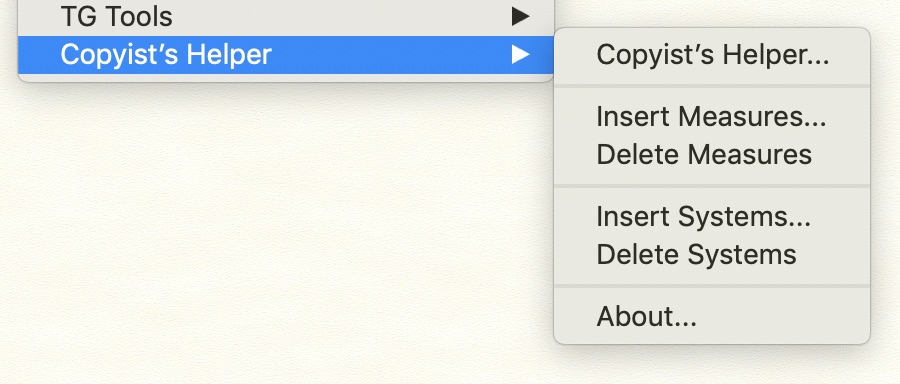
The options in this submenu behave as follows.
Copyist’s Helper. Brings up the plugin dialog box or executes the plugin if selected with Option (Mac) or Shift (Windows).
Insert Measures... Allows you to insert measures before or after the selected region while preserving all subsequent measure numbers. Inserted measures are numbered in alpha sequence as per standard practice in theater copying.
Delete Measures. Deletes the selected measures while preserving all subsequent measure numbers.
Insert Systems... Allows you to insert systems before or after the selected system(s) while preserving all subsequent measure numbers. Inserted measures are numbered in alpha sequence as per standard practice in theater copying. (Available in Page View Only.)
Delete Systems. Deletes the selected system(s) while preserving all subsequent measure numbers. (Available in Page View Only.)
About... Displays information about the current version of Copyist’s Helper and provides an option to register the product.
Some recommendations for how to use the plugin appear below.
You can download the latest version of the plugin here. If you have not registered, you can try it 30 days for free.
You can register your copy of the plugin here.
The placement of measure numbers is extremely important for music in theaters and other venues where rehearsal time as at a premium. Copyists (and their supervisors) have developed placement rules that maximize the efficiency of the rehearsal process. These rules have until now required laborious manual insertion and positioning of measure numbers in Finale.

- Boxed numbers are aligned with the left system margin and placed over the staff.
- Multi-measure rests show their measure-numbers range centered under the multi-measure rest.
- Measures numbers on other measures—not at the start of the system—are positioned under the staff and aligned with the left barline.
- Measure numbers at the start of the system (other than boxed numbers) are positioned under the staff and aligned with the left system margins, except for treble-clef staves where the number is pushed right of the downward hook of the clef.
Not pictured is the situation where a part (such as a keyboard part) has multiple staves. In this situation, non-boxed measure numbers are positioned above the top staff, except for multi-measure rest ranges, which stay centered and below. If the part varies between single and multiple staves, the single rules apply for the single-staff systems.
The plugin also handles the situation where measures have been inserted or deleted. In this case, copyists create multiple non-overlapping measure number ranges to maintain numbering consistency with the original version. (They also lock all systems, so that boxed number remain at the system left edge even after inserts or deletes.) Inserted ranges have numbers like "22a" thru "22d". After inserting or deleting, and creating the appropriate measure number ranges, you can re-run the plugin, and it recalculates all the measure number placements, including the boxed numbers you specify.
For the plugin to work, you must first create at least one measure number range with the following attributes.
- "Show on Start of Staff System" is checked.
- If there are any measure numbers to be boxed, the measure number region must have an enclosure defined for Start of Staff System. (The "Enclosure" checkbox need not be checked, though.)
- Show Measure Ranges on Multimeasure Rests is checked.
If you are working with linked parts, these attributes must be in effect for linked parts. That means either they are checked on the Linked Parts panel, or the Use Score Settings checkbox in the Linked Parts panel is checked and the settings exist on the Score panel.
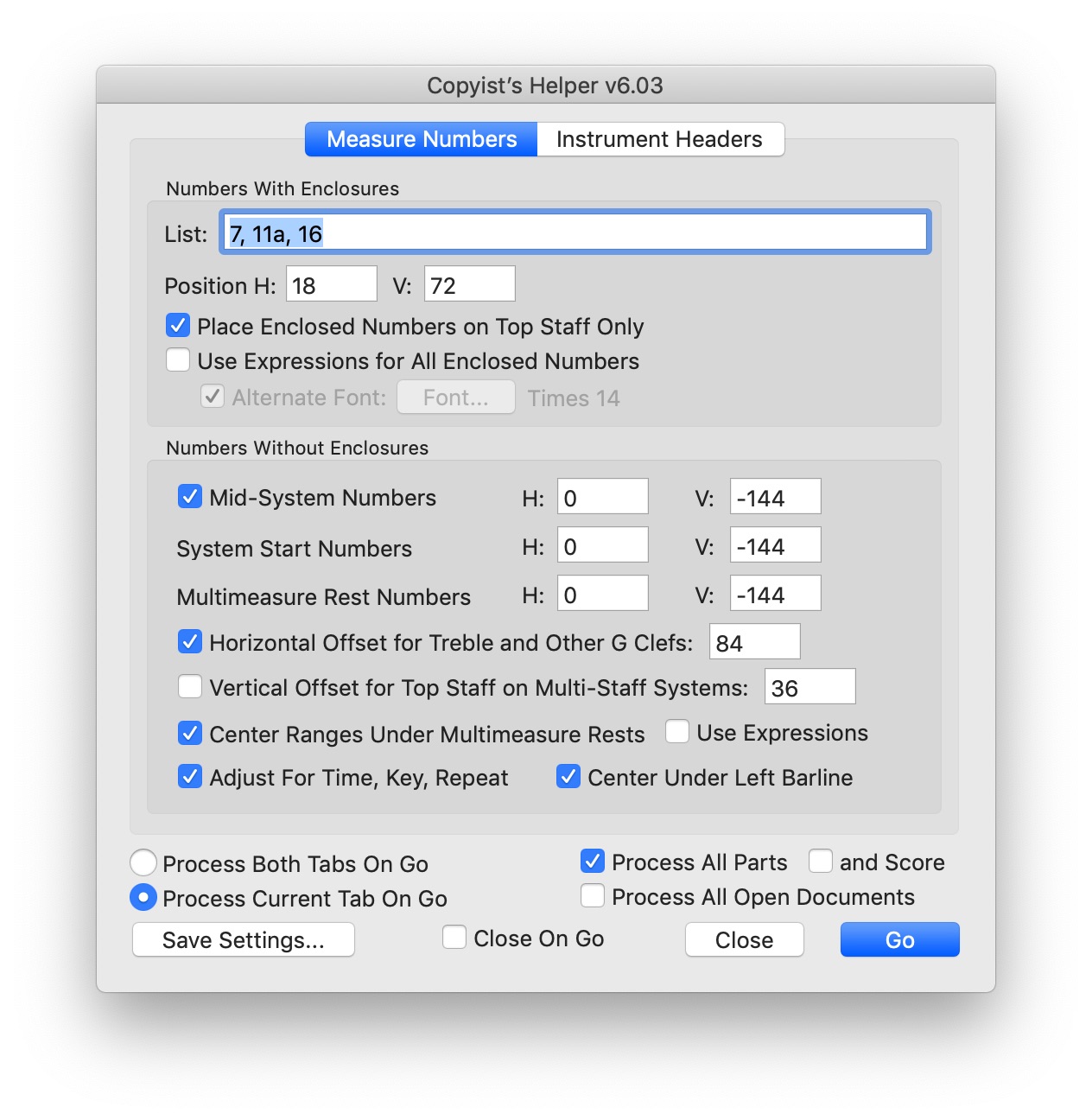
Numbers With Enclosures
NOTE: With current Finale versions you may find Rehearsal Number Expressions to be a better option for boxed numbers than Numbers With Enclosures in Copyist’s Helper.
List. List every measure number that should have an enclosure, separated by commas. Enter measure numbers the same way you would in Finale's Scroll View. There is no set limit to how many numbers you can enter here. (They may scroll beyond the end of the visible area in the edit box.) For a very long list, you may find it easier to paste the list in from a word processor document. Starting with Version 5, when you press Go this list is saved in a text expression and retrieved the next time you invoke Copyist's Helper for the document.
Position H V. The placement for boxed numbers. A horizontal offset of 18 evpus left-justifies Finale's default enclosure, so the plugin defaults to 18 evpus.
Place Enclosed Numbers on Top Staff Only. Checking this option causes the listed numbers to be placed on only the top staff. If measure numbers would not otherwise appear on the top staff, the plugin uses text expressions instead. When this option is unchecked, enclosed numbers are placed on any staff where measure numbers appear (based on the staff's "Items to Display" and the "Always Display..." options in the measure number region).
Use Expressions for All Enclosed Numbers. Checking this option forces all boxed numbers to be text expressions. Unchecking it allows any enclosed number that can to be a forced measure number instead.
Alternate Font: [Font...]. This option is only applicable when forcing all enclosed numbers to text expressions. It allows you to supply an alternate font and style for the text expressions. Otherwise, they have the same font and style as the measure numbers.
Numbers Without Enclosures
Mid-System Numbers. Position H V. The placement for non-boxed mid-systems numbers, if "Mid-System Numbers" is checked. The H value offsets from the left barline.
System-Start Numbers. Position H V. The placement for non-boxed numbers at the start of a system. The H value offsets from the beginning of the system.
Multimeasure Rest Numbers. Position H V. The placement for non-boxed numbers under a mulitmeasure rest. The H value offsets from the center of the multi-measure rest.
Horizontal Offset for Treble and Other G Clefs. Checking this option causes the plugin to use the alternate horizontal placement value at the beginning of a system where the number is under the staff and the system starts with a G clef.
Vertical Offset for Top Staff on Multi-Staff Systems. Checking this option causes the plugin to use the alternate vertical placement value when there are multiple staves in a system. This recommended for parts like keyboard or piano vocal parts.
Center Ranges Under Multimeasure Rests. Turn on this option to center ranges under multimeasure rests. To use this option, the source measure number range(s) in Finale must have the "Show Measure Ranges on Multimeasure Rests" option checked.
Use Expressions. Check this option if you would like Copyist’s Helper to insert all the ranges under multimeasure rests a text expressions. One advantage of using expressions is that Copyist’s Helper provides more accurate information than Finale does if the multimeasure rest spans multiple measure-number regions.
Adjust For Time, Key, Repeat. If a mid-system measure contains a lead-in consisting of a time change, key change, and/or open repeat bar, this option causes the plugin to offset the measure numbers left by an amount equal to the lead-in. (By default Finale aligns measure numbers with the start of music, which is to the right of time changes, key changes, or open repeat bars.) While the plugin will offset any measure number, only left-aligned measure numbers will end up aligned with the left barline.
Center Under Left Barline. If you enable the previous option to adjust for a lead-in, this option further adjusts the handle of the measure number so that it is centered under the left barline. For normal barlines the difference may not be very noticeable, but it becomes more noticeable with double barlines. This option may be most useful if your measure numbers are left-aligned and center-justified.
Another way that copyists streamline rehearsals is to continually remind doubling players of the current instrument. Doubling parts typically have a staff name that identifies the role of the player, like "Reed 1". Then each instrument has a staff style with its instrument name (like "Flute" or "Clarinet" or "Alto Sax.") that overrides the staff name when the player is to play that instrument.
To remind the player of the current instrument, each page has a header at the top, something like
REED 1 (Flute)
Currently, the only way to do this is to manually create a page header for each page. This approach is both laborious and error-prone. Copyist's Helper can do it automatically at the click of a button. What the plugin does is substitute for user-defined placeholders in page headers. To use the plugin, a copyist first creates one or more page headers, something like
$$$Staffname ($$$Instname)
This header can have any font or placement attributes the copyist needs. It can also be global (i.e., on every page or all but page one, etc.) The plugin searches all page headers for the placeholders and substitutes the staff name and/or the current instrument name as specified. Even though a source header may be global, if the current instrument name is different on different pages, the plugin creates as many different headers, assigned to the correct pages, as needed to accommodate changes in the instrument name. For documents with multiple staves, the staff name is taken from the first group name that spans the entire scroll view staves. If none is found, the plugin uses the topmost staff in scroll view. The instrument name is taken from the topmost staff of the first system on the page.
NOTE: When using linked parts in Finale 2007 and later, it is recommended to use Finale's built-in Part Name insert rather than Copyist’s Helper's Staff Name substitution string. However, Copyist’s Helper continues to support the Staff Name substitution string for compatibility with older files. Copyist’s Helper v4 fully supports instrument headers with linked parts. While the results end up looking cluttered on screen, they print correctly.
Using Scroll View Bookmarks as Section Names
Besides showing current instrument, it is often helpful to place a title showing the current section somewhere on each page. Sections might be movement titles in a symphony or scene/act names in a show. Such titles facilitate finding rehearsal locations in a booklet with many pages. Finale (as of Finale 26) does not have the concept of "sections" but it has Scroll View Bookmarks. Starting with v6.00, Copyist's Helper allows you to use bookmarks to name and specify the first bar of each section. The plugin replaces the "$$$Bookmark" placeholder with the name of the closest previous Scroll View Bookmark in any page title that contains the placeholder.
NOTE: While the plugin will allow you to use both staff and instrument placeholders and the bookmark placeholder in the same page title, this is not recommended because it will generally not be repeatable. If the plugin detects such a page title, it issues a warning before proceeding.
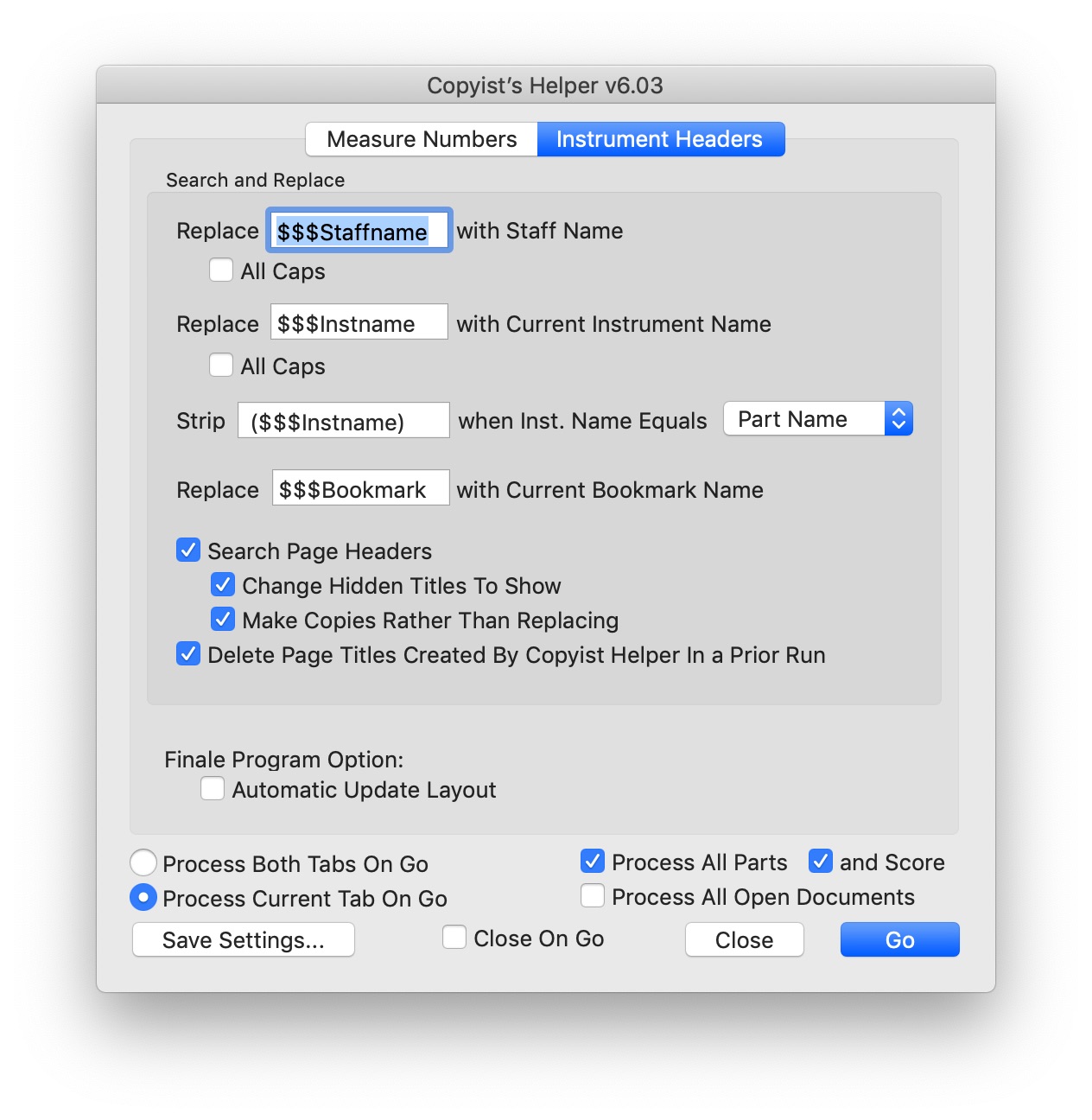
Replace [...] with Staff Name [x] All Caps.
Replace [...] with Current Instrument Name [x] All Caps.
Use these options to specify the placeholders for staff name and current instrument name. (If you do not use staff styles to override the staff name, then staff name and current instrument name are essentially always the same.) Checking All Caps causes the plugin to convert the name to uppercase when it substitutes it into the page header(s). Leaving a placeholder blank disables the replacement for that name. (NOTE: With linked parts, you may prefer to use the Finale's Part Name Insert rather than the Staff Name placeholder.)
Strip [...] when Inst. Name Equals {Staff Name/Part Name}.
For parts that have no doubling, the headers might end up looking like "Tenor Sax (Tenor Sax)" on every page. To avoid this, you can specify a placeholder here to strip out the Instrument Name portion of the template header, leaving just the part name or staff name.
Replace [...] with Current Bookmark Name.
Specifies the placeholder for the use of Scroll View Bookmarks as a substitute for section titles. (These might be movement titles of a multi-movement work or act/scene titles of a show.) Leaving the placeholder blank disables replacement of bookmark names.
Search Page Headers. Enables the page header searching function.
Change Hidden Titles to Show. Page headers that contain placeholders are likely to be rather unsightly, so you may not wish for them to print out until after you have run the plugin. Checking this option allows you to have source headers (containing placeholders) that do not print while having resulting headers with the correct staff and instrument names that do print. This is an especially important option if you will be doing a lot of revising. (See recommendations below.)
Make Copies Rather Than Replacing. You will almost certainly use this option only in conjunction with the previous one. If you check this option, the plugin leaves the source header(s) in place. Leaving them in place makes for easier subsequent revisions, but it also makes a confusing mess on the screen. If you set your source header(s) not to print, and if you also check the previous option, then the printout will be fine, despite the mess on screen.
Delete Page Titles Created By Copyist Helper In a Prior Run. This option deletes any titles created from a template source title. The source title must still be in the file, so for this option to have any effect, you should also check "Make Copies Rather Than Replacing". Starting with v6.00 it is possible to unlink the source title and position it differently in score and parts.
Finale Program Option: Automatic Update Layout. A limitation in Finale prevents the Instrument Headers tab in Copyist’s Helper from working correctly if Finale's Automatic Update Layout option is in effect when Copyist’s Helper begins its work. The plugin issues a warning and refuses to run if it detects the option turned on. The checkbox here is merely a shortcut for turning it on and off. You can also control it through Finale's Program Options.
{ Process All Tabs On Go | Process Current Tab On Go }. If you select Process Current Tab On Go, then only the current tab is processed. For example, if you current tab were Instrument Headers, then when you pressed go, no measure numbers would be changed.
Process All Parts. If this option is checked, then all linked parts (but not the score) are processed, irrespective of the current view in the document window. If the option is not checked, then the view in the current document window is processed.
and Score. This option is only available when Process All Parts is checked. It tells the plugin to process the score and all parts at the same time.
Process All Open Documents. If this option is checked, then all open documents are processed when you hit Go. If it is unchecked, then only the current document is processed.
Close On Go. Checking this option causes the window to close when you hit Go.
Save Settings... brings up the Save Settings dialog.
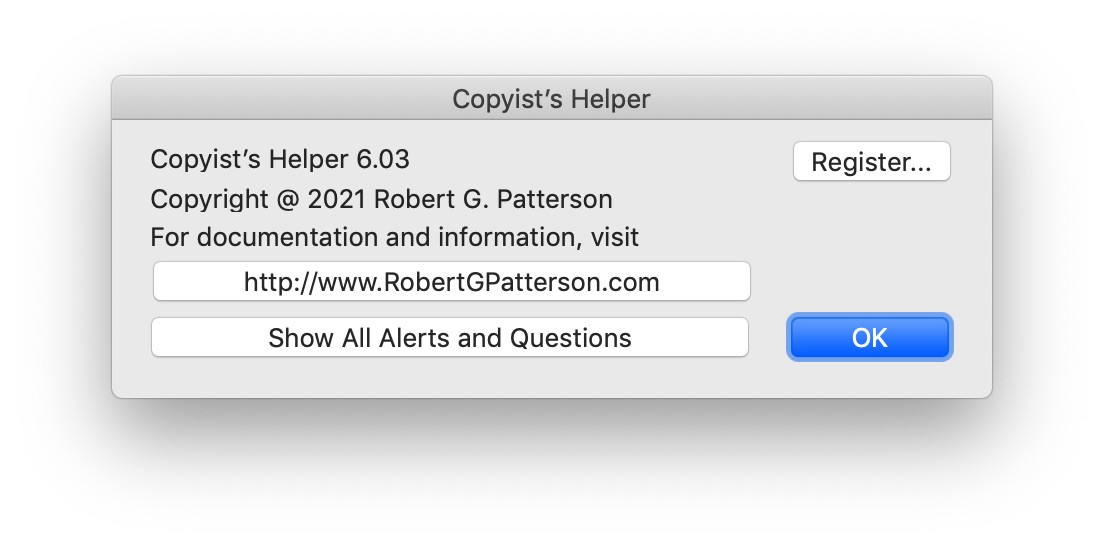
Show All Alerts and Questions. If you have checked any Do Not Show Again options on message boxes or question boxes, clicking this button resets them so they will show again.
Register... If you have registered Copyist’s Helper, click this button to enter your registration code.
One of the major areas of improvement for Version 4 of Copyist’s Helper is support for linked parts. Finale 2012 introduced the ability for plugins to control hide/show and linkage for both Page Titles and Expressions. Unfortunately, this control did not extend to Forced Measure Numbers, but there are ways to compensate. When using Copyist’s Helper with linked parts:
- Hide measure numbers on all staves, but set the measure number region(s) to show on top (or bottom) staff.
- Consider enabling the system-start enclosure in your measure number region by default. Copyist’s Helper v4 recognizes this situation and hides all enclosures except those corresponding to numbers in the list. This may provide a more consistent look to the boxed numbers than a mix of enclosed measure numbers and enclosed expressions.
- Do not include any staves in more than one part.
- There is no reason to use Copyist’s Helper's Instrument Headers tab if your music does not contain doubling parts. Finale's Part Name insert should be sufficient for this case.
- If a part does have doublings, make sure that the part name is different than all of the instrument names in Score Manager. For example, if the first reed player doubles on alto sax, oboe, and clarinet, the part name should be something other than alto sax, oboe, or clarinet. Many users in this situation choose something like "Reed 1" for the part name.
- For other parts that do not have doublings, make sure that the instrument name in Score Manager matches the part name. For example, if the instrument is "Horn 1 in F" then the part should also be called "Horn 1 in F".
- If you have doubling parts, rather than using that staffname token in Copyist's Helper, use the Finale's Part Name insert instead. Thus, the template header might look something like {Part Name} ($$$Instname) where "{Part Name}" is Finale's Part Name text insert.
- If you are using a Bookmark placeholder, name your Scroll View Bookmarks to match your section titles, with each one pointing to the start of the section. Do not add any Scroll View Bookmarks that are not at the start of a section as Copyist's Helper will treat any Scroll View Bookmark as the start of a new section. (The plugin ignores Page View Bookmarks.)
- Create separate template page titles for the bookmark placeholder as for the staff/instrument placeholders. If you combine them in a single template, Delete Page Titles Created By Copyist’s Helper In a Prior Run will not be able clean them up successfully. There may also be extraneous titles left over with the staff or instrument placeholder. The plugin warns you before proceeding if this is the case.
- To facilitate the easiest revisions, hide the template page title in Finale and check the following options in Copyist's Helper:
- Change Hidden Titles to Show
- Make Copies Rather Than Replacing
- Delete Page Titles Created By Copyist’s Helper In a Prior Run
Some users of Finale choose to maintain a score file separate from the file containing all the parts. While it is more tedious to make revisions separately in two different files, one does not have to expend any effort eliminating undesired changes to score view caused by layout changes and other print details in the parts (and vice versa.) Many users find the trade-off to be worth it. However, if you are maintaining the score view in the same file with the parts, consider the following recommendations with respect to Copyist's Helper:
- To control the measure numbers in the score separately from the parts, add an empty staff at the top (or bottom). Uncheck every option in the Staff Attributes dialog box for this staff. It will effectively be invisible, yet present on all systems.
- To avoid having the left barline extend above or below the visible staves, hide the left barline in the barline options and instead create a group that encompasses all but the hidden staff. Position the "desk bracket" option of the group to appear where the left barline would be.
- Run Copyist’s Helper separately for the score (with "Process All Parts" unchecked) and parts (with "Process All Parts" checked but "and Score" unchecked). You may wish to create Saved Settings for each case. (Starting with v6.00 you can process score and parts in one pass.)
Beyond working with linked parts, here are some other recommendations:
- For small revisions to measure numbers, select the revised measures to run the plugin against only that portion of a file.
- Version 5 of Copyist's Helper saves all of the text expressions it creates in a category called "CopyHelper Exps". Included in these is an expression that containes the boxed measure number list. It automatically loads the list from that expression. However, if you are using an earlier version of the plugin, you can maintain a comma-delimited list of boxed numbers for a project in the file's Description text (in File Info) or a separate word processor document or a scrapbook entry. You can easily copy that list into the List edit box when you run the plugin.
- Create Saved Settings with Skip Options turned on to run the plugin without ever seeing the dialog box. You can still access the dialog box for the saved setting by holding down Option (MacOS) or Shift (Windows) when selecting the saved setting from the plugin menu.
If you have questions, comments, or suggestions about the operation of this plugin, please feel free to contact me.